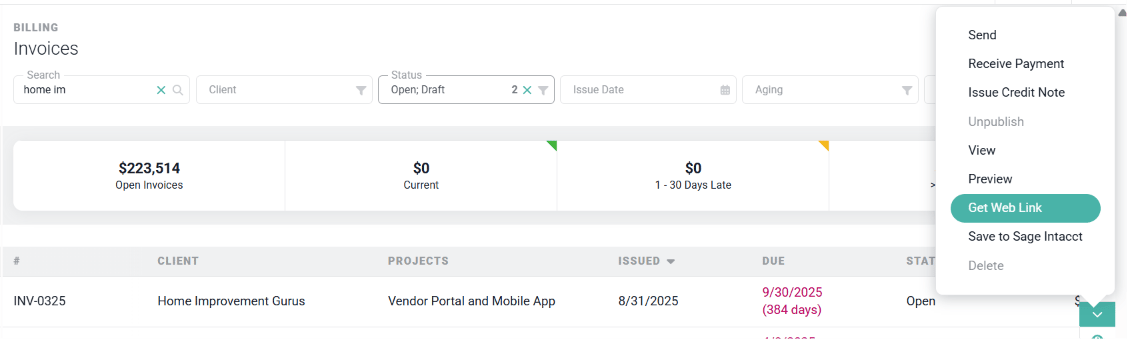
All invoices in Ruddr have an associated web link. A web link is a unique URL that allows you to provide access to the invoice to anyone inside or outside of your company. If you do not use Ruddr’s built-in invoice email feature, you can instead paste the web link into an email that you compose and send. To retrieve the web link for an invoice, simply click on the Get Web Link option on the invoice menu, available in the invoices list (Figure 1) or when viewing the invoice detail (Figure 2).
The action menu on an invoice row in the Invoices list, with Get Web Link highlighted

Figure 1 - Use the Action Menu on the Invoices List to Retrieve a Web Link for an Invoice
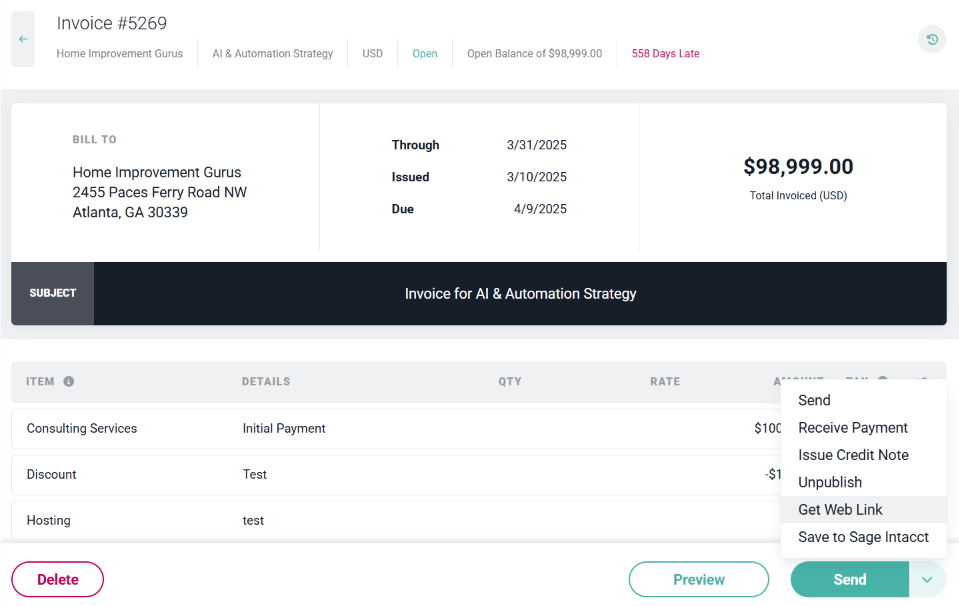
The invoice action menu next to Send, with Get Web Link highlighted

Figure 2 - Use the Invoice Action Menu on the Invoice Detail to Retrieve a Web Link
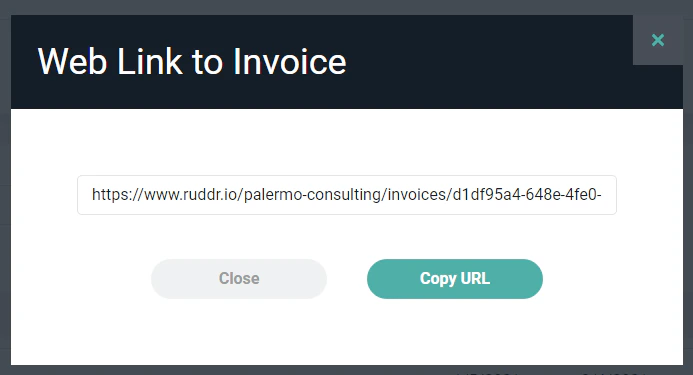
Clicking on this menu item will bring up a window (Figure 3) that will include the web link URL. You can click on the Copy URL button to copy the URL to your clipboard.
Copy the URL to the Web Version of the Invoice
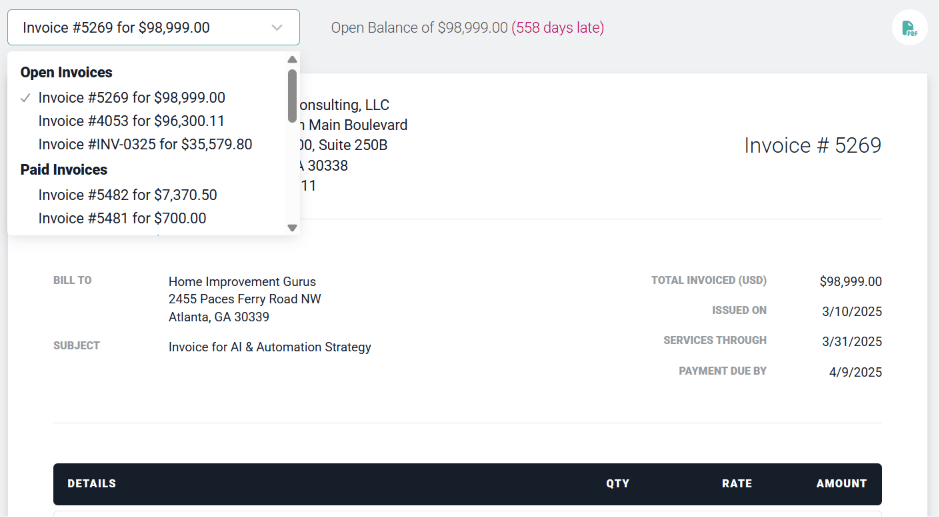
Figure 3 - Copy the URL to the Web Version of the Invoice

It is important to realize that web links are not password protected. Anyone who has the web link can view the associated invoice. A web link to a draft invoice will only show that single invoice while a web link to a published invoice will include a drop-down (Figure 4) that will show all published invoices related to that client. The drop-down groups the client’s invoices under Open Invoices and Paid Invoices. Partially paid invoices stay under Open Invoices until they’re fully paid, and a group with no invoices shows None.
The invoice drop-down on a web link, grouped into Open Invoices and Paid Invoices

Figure 4 - When Viewing the Web Version of a Published Invoice, the User has Access to all Published Invoices for a Client
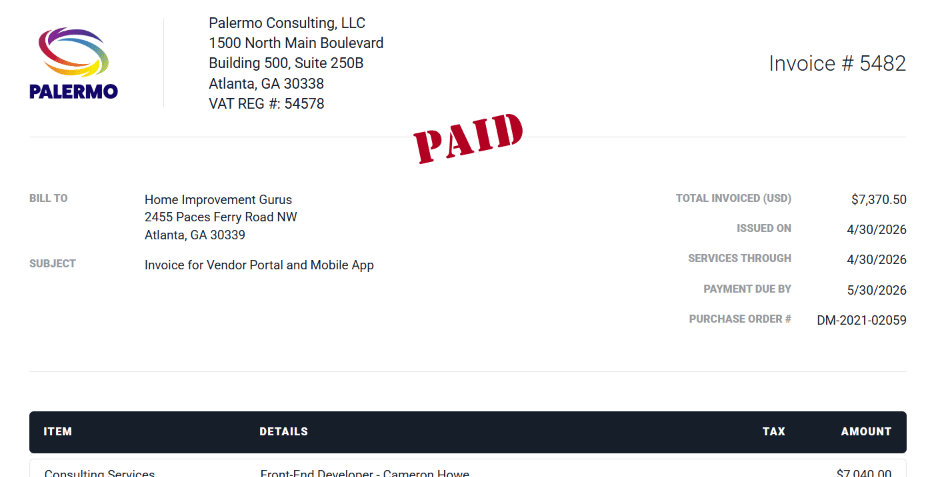
When an invoice is a draft or has been fully paid, the word “DRAFT” or “PAID” will be shown (Figure 5) at the top of the web link view of the invoice.
Web link view of a paid invoice with the PAID stamp at the top

Figure 5 - Viewing a Web Version of a Paid Invoice