

Adding Ruddr to Your Own ChatGPT Account
On an individual account, Ruddr is added as a custom plugin. This requires developer mode, which you turn on in Settings > Security and login. Then go to Settings > Plugins, click +, and fill in the New Plugin dialog (Figure 1). OpenAI’s Connect and test your plugin covers these screens. On an individual account Ruddr connects for reading only; creating and updating records requires a Business, Enterprise, or Edu workspace.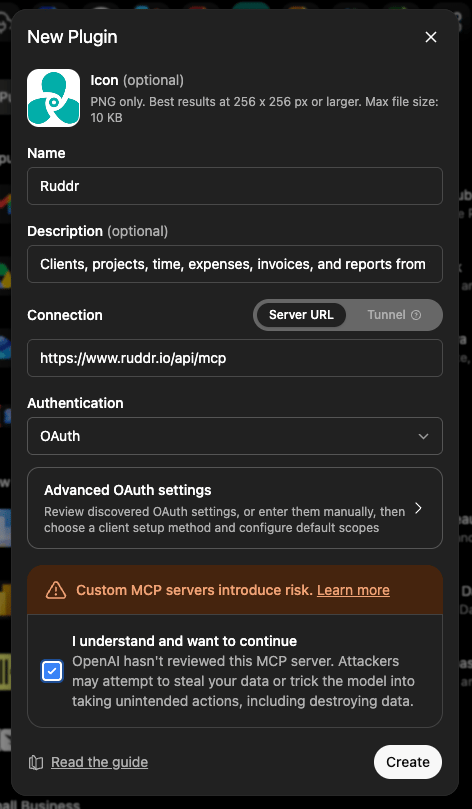
Figure 1 - Create a New Plugin in ChatGPT
Adding Ruddr to a ChatGPT Business or Enterprise Workspace
In a Business, Enterprise, or Edu workspace, Ruddr is added as a custom app by an admin or owner, not by individual members. This also requires developer mode, which an admin turns on in Workspace settings > Permissions & roles, under Connected Data. The admin then goes to Workspace settings > Apps, clicks + Create, and fills in the New App dialog (Figure 2), which asks for the same values as the plugin form above.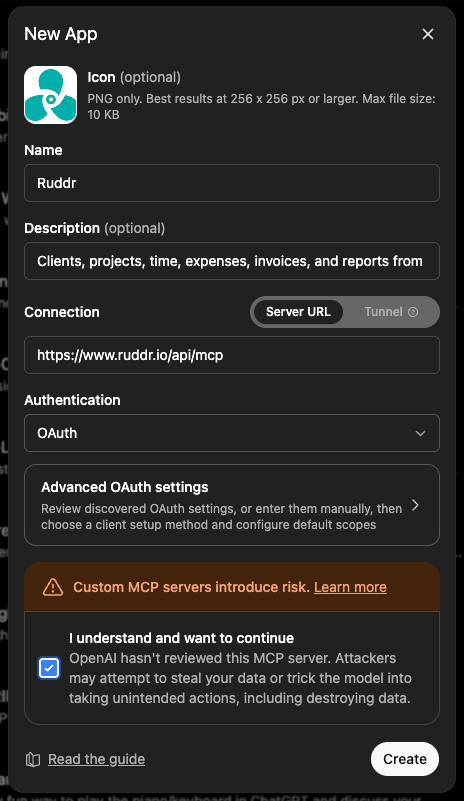
Figure 2 - Create a New App in a ChatGPT Workspace
- Which plans. Full MCP support, including the ability to create and update records, is available on ChatGPT Business, Enterprise, and Edu, on the web only — not on mobile.
- What publishing does and does not do. After the app is created it appears as a draft, and an admin publishes it to the workspace from Workspace settings > Apps > Drafts. Published apps appear in members’ Apps settings labeled Custom. Publishing gives nobody access to Ruddr data. Each member still connects Ruddr, signs in, and approves it individually, and then sees only what their own security role allows.
- Updates are not automatic. ChatGPT freezes the list of Ruddr tools at the moment you publish. When Ruddr adds new capabilities, an admin has to refresh the app’s actions in workspace settings before members can use them. Ruddr reorganized its tools in September 2026, so an app published before then should have its actions refreshed — see How a Connected App Reaches Your Data. Until an admin does, the app keeps working as it did.
What to Enter
Tick I understand and want to continue, then click Create. When you connect, ChatGPT sends you to Ruddr to sign in and approve the connection and then returns you to ChatGPT. You are never asked for a password, an API key, or a token — see Connecting an Application for what that approval screen is asking.

About the Risk Warning
Both forms show the warning Custom MCP servers introduce risk, along with a note that OpenAI has not reviewed the server. This is OpenAI’s standard notice for any MCP server it has not reviewed itself, not a judgment about Ruddr, and it appears no matter which server you add. The Ruddr server acts as you. It returns only what your own security role allows, so it cannot expose anything you could not already open in Ruddr. ChatGPT identifies itself to Ruddr using OAuth rather than a shared password or key, you approve the connection in Ruddr yourself, and you can revoke it whenever you like from your Connected Apps page.Codex CLI
Add Ruddr and then sign in, from a terminal:codex mcp list. To remove it, run codex mcp remove ruddr.
Codex Desktop App and IDE Extension
In the desktop app, open Settings and select MCP servers. In the IDE extension, open the gear menu and select MCP servers. From there the steps are the same:- Select Add server.
- Enter
Ruddras the name, choose Streamable HTTP, and enter the Ruddr server address as the URL. - Save the server, then select Restart — or Restart extension in the IDE.
- Ruddr appears in the server list marked as needing authentication. Click Authenticate and approve the connection in Ruddr.