

Enabling QuickBooks Desktop Support
The QuickBooks Desktop export feature can be enabled from within the Integrations section of Workspace Settings. A member must have the Workspace Admin security role to access and enable this function. From within the Integrations section, there will be a QuickBooks Desktop tile (Figure 1). Click Install to enable the QuickBooks Desktop export functionality.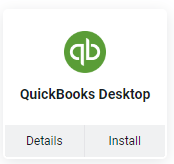
Figure 1 - Click Install to Enable the QuickBooks Desktop Support in your Workspace
General Settings
The first setting to provide is a Discount Account. Providing this account will ensure that exported Ruddr invoices with discounts will be listed with the appropriate discount account when imported into QuickBooks Desktop. The discount account must be spelled exactly as the account in QuickBooks is spelled.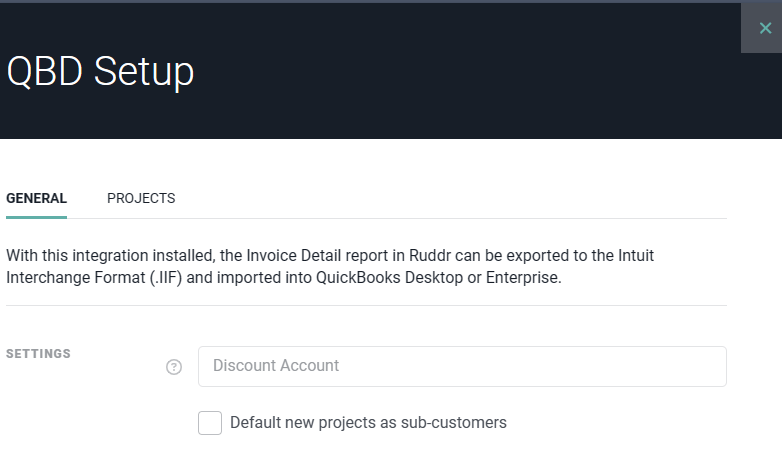
Figure 2 - Specify the General Settings for the QBD Integration
Project Settings
On the Projects tab (Figure 3) of the QBD (QuickBooks Desktop) Setup drawer, you can manage which projects in the workspace are to be treated as sub-customers.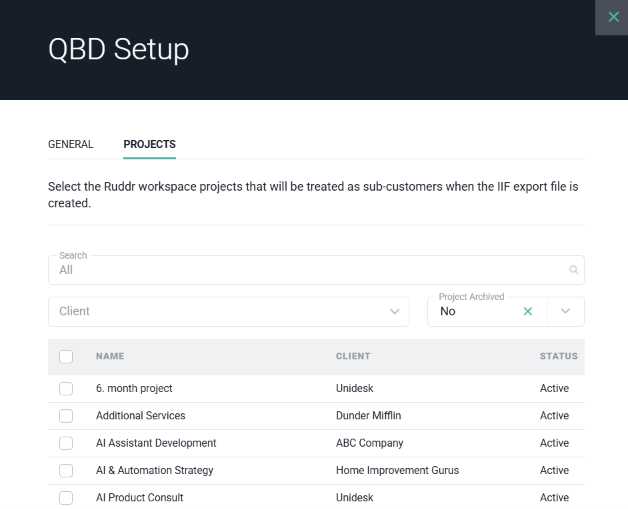
Figure 3 - Specify Which Ruddr Projects are to be Treated as QBD Sub-customers
Generating the IIF File
Once the QuickBooks Desktop support has been enabled, you will be able to export the Invoice Detail report, which can be found in the Financial section of Ruddr reports. Once the report has been run and any report filters have been applied to include the invoices you wish to export, you can choose the Export to IIF option (Figure 4). This option is only available if the QuickBooks Desktop integration has been installed.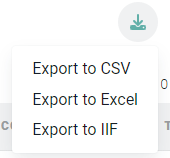
Figure 4 - Export to IIF will Export the Invoice Detail Report to an IIF File Supported by QuickBooks Desktop
- Create a backup of your QuickBooks company file. The invoice import cannot be undone - you will want to have a copy of your company file should you need to revert to a prior instance.
- Ensure that your QuickBooks customer names have the same spelling as the corresponding client names in Ruddr. This must match in spelling and case (upper / lower) down to each character.
- Ensure that QuickBooks item names must have the same spelling as the corresponding invoice items and tax rates in Ruddr. As with customers / clients, these must match in spelling and case (upper / lower) down to each character.
- If your invoices will have discounts applied, the Discount Account name that was provided in the integration setup (Figure 2) should match the name of the corresponding account in QuickBooks.
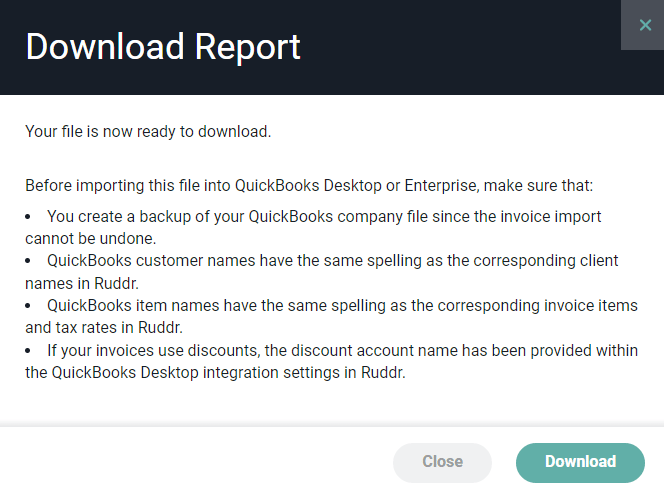
Figure 5 - Recommendations Prior to Importing the IIF File in QuickBooks