> ## Documentation Index
> Fetch the complete documentation index at: https://help.ruddr.io/llms.txt
> Use this file to discover all available pages before exploring further.
# Connect AI Apps to Ruddr
> Connect Claude, ChatGPT, and other AI applications to your Ruddr workspace so they can access data, answer questions, and provide analysis.
**NOTE**: The Ruddr Assistant [feature](/workspace-administration/features) must be enabled in workspace settings in order to connect AI applications to Ruddr.
The [Ruddr Assistant](/getting-started/ruddr-assistant) answers questions inside Ruddr. You can also connect an outside AI application — such as Claude or ChatGPT — directly to your workspace, and ask it the same kinds of questions. A connected application can look up your projects, time, expenses, budgets, billing, and pipeline, and can record time on your behalf.
Connections use MCP (Model Context Protocol), an open standard that AI applications use to reach outside data. Any application that supports MCP can connect to Ruddr.
#### Connected App Permissions
A connected application acts as you. It can only see and change data that your [security role](/workspace-administration/security-roles) allows, so it can never retrieve data you could not access within Ruddr.
Each member must connect their own AI applications to the Ruddr MCP server. In order to do this, the Ruddr Assistant [feature](/workspace-administration/features) must be enabled for the workspace and enabled on the [member's profile](/workspace-administration/member-profile). Turning either setting off also ends the connections that member has already made.
#### Setting Up Your Application
The steps differ slightly between applications, but each one asks for the address of the service you want to connect. For Ruddr, that address is:
```text theme={null}
https://www.ruddr.io/api/mcp
```
You are never asked for a password, an API key, or a token. If an application asks you for one to connect to Ruddr, stop and check what you are actually connecting to.
If the application asks for an icon or logo, [download the Ruddr icon](/images/ai-connectors-setup-icon.png), a 256x256 PNG with a transparent background.
Follow the article for the application you use:
* [Connect Claude to Ruddr](/integrations/ai-connectors-claude-setup) — the Claude desktop and web apps, Claude Code, and Claude Team and Enterprise organizations.
* [Connect ChatGPT and Codex to Ruddr](/integrations/ai-connectors-chatgpt-setup) — ChatGPT Business and Enterprise workspaces, and the Codex CLI, desktop app, and IDE extension.
Each of those articles covers what to enter on the Ruddr side and links to Anthropic's or OpenAI's own documentation for the application's screens, which change more often than Ruddr's do.
#### Connecting an Application
Once you add that address, the application will send you to Ruddr to approve the connection (Figure 1).
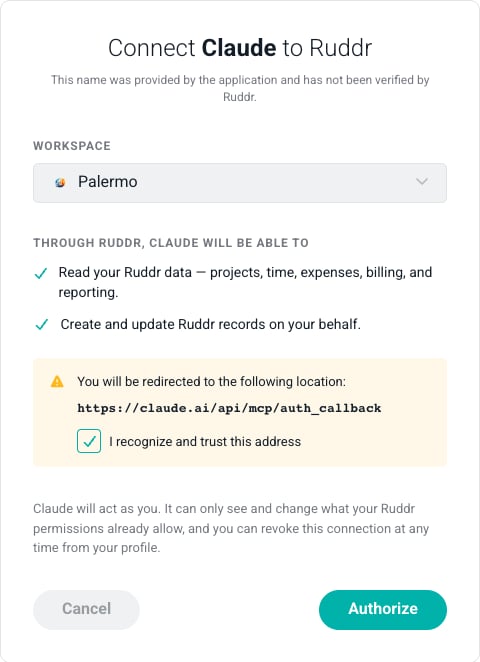 The approval screen tells you four things:
* **Which application is asking.** The name comes from the application itself and has not been verified by Ruddr, so only continue if you just started this from an application you recognize.
* **Which workspace it will connect to.** If you belong to more than one workspace, choose the one you want. Only workspaces with the Ruddr Assistant enabled are listed.
* **What it will be able to do.** The application decides what to ask for, and you either approve all of it or cancel. See [What a Connected App Can Do](#what-a-connected-app-can-do) below.
* **Where you will be sent afterward.** Check that you recognize the address, then tick **I recognize and trust this address**. The **Authorize** button stays disabled until you do.
Clicking **Authorize** completes the connection and returns you to the application, which can start asking Ruddr questions right away.
#### Connecting a Device or Terminal
Some applications cannot open a browser for you — a tool running over SSH, or one on a machine with no browser at all. Those show you a short code instead and ask you to enter it somewhere you can browse.
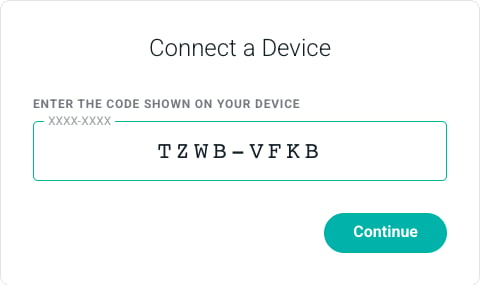
Go to [**www.ruddr.io/device**](http://www.ruddr.io/device) on any device where you can sign in to Ruddr, and enter the code exactly as the application displayed it (Figure 2).
The approval screen tells you four things:
* **Which application is asking.** The name comes from the application itself and has not been verified by Ruddr, so only continue if you just started this from an application you recognize.
* **Which workspace it will connect to.** If you belong to more than one workspace, choose the one you want. Only workspaces with the Ruddr Assistant enabled are listed.
* **What it will be able to do.** The application decides what to ask for, and you either approve all of it or cancel. See [What a Connected App Can Do](#what-a-connected-app-can-do) below.
* **Where you will be sent afterward.** Check that you recognize the address, then tick **I recognize and trust this address**. The **Authorize** button stays disabled until you do.
Clicking **Authorize** completes the connection and returns you to the application, which can start asking Ruddr questions right away.
#### Connecting a Device or Terminal
Some applications cannot open a browser for you — a tool running over SSH, or one on a machine with no browser at all. Those show you a short code instead and ask you to enter it somewhere you can browse.
Go to [**www.ruddr.io/device**](http://www.ruddr.io/device) on any device where you can sign in to Ruddr, and enter the code exactly as the application displayed it (Figure 2).
 Clicking **Continue** brings up the same decision as the approval screen (Figure 3): which application is asking, which workspace it will connect to, and what it will be able to do. There is no redirect address to check, because the application is not sending you anywhere — it is waiting for your answer.
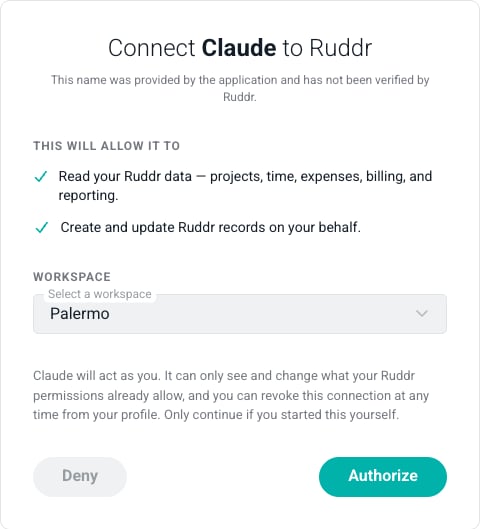 Click **Authorize** and you can go back to the application, which picks up the connection on its own within a few seconds. The code expires after fifteen minutes; if it does, start the connection again in the application to get a fresh one.
#### What a Connected App Can Do
An application asks for one or both of the following:
* **Read your Ruddr data** — projects, time, expenses, billing, and reporting.
* **Create and update Ruddr records on your behalf** — such as tracking time.
These are requested by the application, not chosen by you, so an application that asks to create records is approved with that ability or not connected at all. Either way your security role still applies on every request.
Anything a connected application records is attributed to you, and shows the application as its source in the entry's history.
#### How a Connected App Reaches Your Data
Ruddr does not hand a connected application a list of every report and record type it could ask for. It offers two tools — one for reading your data and one for making changes — and the application works through them in three steps:
* **Search** for the kind of data the question needs, such as time entries, invoices, or project budgets.
* **Load** what it found, to learn which filters, groupings, and date ranges that data accepts.
* **Run** it and read the result.
Most AI applications limit how many tools a connection may offer, and start choosing badly between them well before that limit. Ruddr covers a lot of ground, so routing everything through two tools keeps the connection comfortably inside those limits and gives every request the same shape, whichever application you connect.
The application does all of this on its own. You just ask in plain language — "how many hours did we bill Acme in August?" — and it works out which Ruddr data to search for and how to ask for it.
#### Managing Your Connected Apps
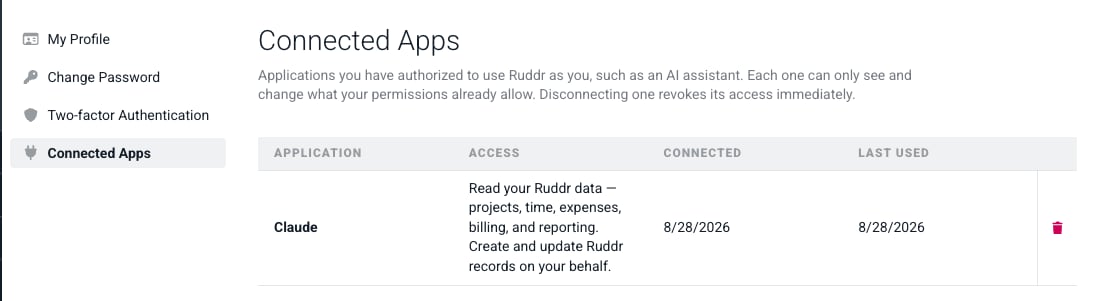
Every application you have authorized is listed under **Connected Apps** in your Ruddr profile (Figure 4), where you can see what each one is allowed to do, when you connected it, and when it last used the connection — and disconnect any you no longer need. See [Connected Apps](/getting-started/user-profile#connected-apps) for the full details.
Click **Authorize** and you can go back to the application, which picks up the connection on its own within a few seconds. The code expires after fifteen minutes; if it does, start the connection again in the application to get a fresh one.
#### What a Connected App Can Do
An application asks for one or both of the following:
* **Read your Ruddr data** — projects, time, expenses, billing, and reporting.
* **Create and update Ruddr records on your behalf** — such as tracking time.
These are requested by the application, not chosen by you, so an application that asks to create records is approved with that ability or not connected at all. Either way your security role still applies on every request.
Anything a connected application records is attributed to you, and shows the application as its source in the entry's history.
#### How a Connected App Reaches Your Data
Ruddr does not hand a connected application a list of every report and record type it could ask for. It offers two tools — one for reading your data and one for making changes — and the application works through them in three steps:
* **Search** for the kind of data the question needs, such as time entries, invoices, or project budgets.
* **Load** what it found, to learn which filters, groupings, and date ranges that data accepts.
* **Run** it and read the result.
Most AI applications limit how many tools a connection may offer, and start choosing badly between them well before that limit. Ruddr covers a lot of ground, so routing everything through two tools keeps the connection comfortably inside those limits and gives every request the same shape, whichever application you connect.
The application does all of this on its own. You just ask in plain language — "how many hours did we bill Acme in August?" — and it works out which Ruddr data to search for and how to ask for it.
#### Managing Your Connected Apps
Every application you have authorized is listed under **Connected Apps** in your Ruddr profile (Figure 4), where you can see what each one is allowed to do, when you connected it, and when it last used the connection — and disconnect any you no longer need. See [Connected Apps](/getting-started/user-profile#connected-apps) for the full details.
 #### If the Connection Is Refused
A few things will stop the approval screen from completing:
* **No workspace is listed.** The Ruddr Assistant is not enabled for you in any workspace. Ask a workspace admin to turn on the [feature](/workspace-administration/features) and the **Ruddr Assistant enabled** setting on your [member profile](/workspace-administration/member-profile), then connect again.
* **You are being impersonated.** An application can only be connected by a member signed in to Ruddr directly, not by an administrator viewing the workspace as you. Sign in yourself and try again.
* **The connection stops working later.** Turning off either the workspace feature or your **Ruddr Assistant enabled** setting ends existing connections as well as new ones.
#### If the Connection Is Refused
A few things will stop the approval screen from completing:
* **No workspace is listed.** The Ruddr Assistant is not enabled for you in any workspace. Ask a workspace admin to turn on the [feature](/workspace-administration/features) and the **Ruddr Assistant enabled** setting on your [member profile](/workspace-administration/member-profile), then connect again.
* **You are being impersonated.** An application can only be connected by a member signed in to Ruddr directly, not by an administrator viewing the workspace as you. Sign in yourself and try again.
* **The connection stops working later.** Turning off either the workspace feature or your **Ruddr Assistant enabled** setting ends existing connections as well as new ones.